GET STARTED
Five steps. About two minutes. We'll walk you through every click.
FIRST THINGS FIRST
Sign up with Google, Apple, or email — whatever's easiest. Pick a plan and you'll get 14 days completely free.
You won't be charged until the trial ends. And if OPS doesn't add value to your trading, we'll refund every dollar. No questions.
Start Your Free Trial ➜
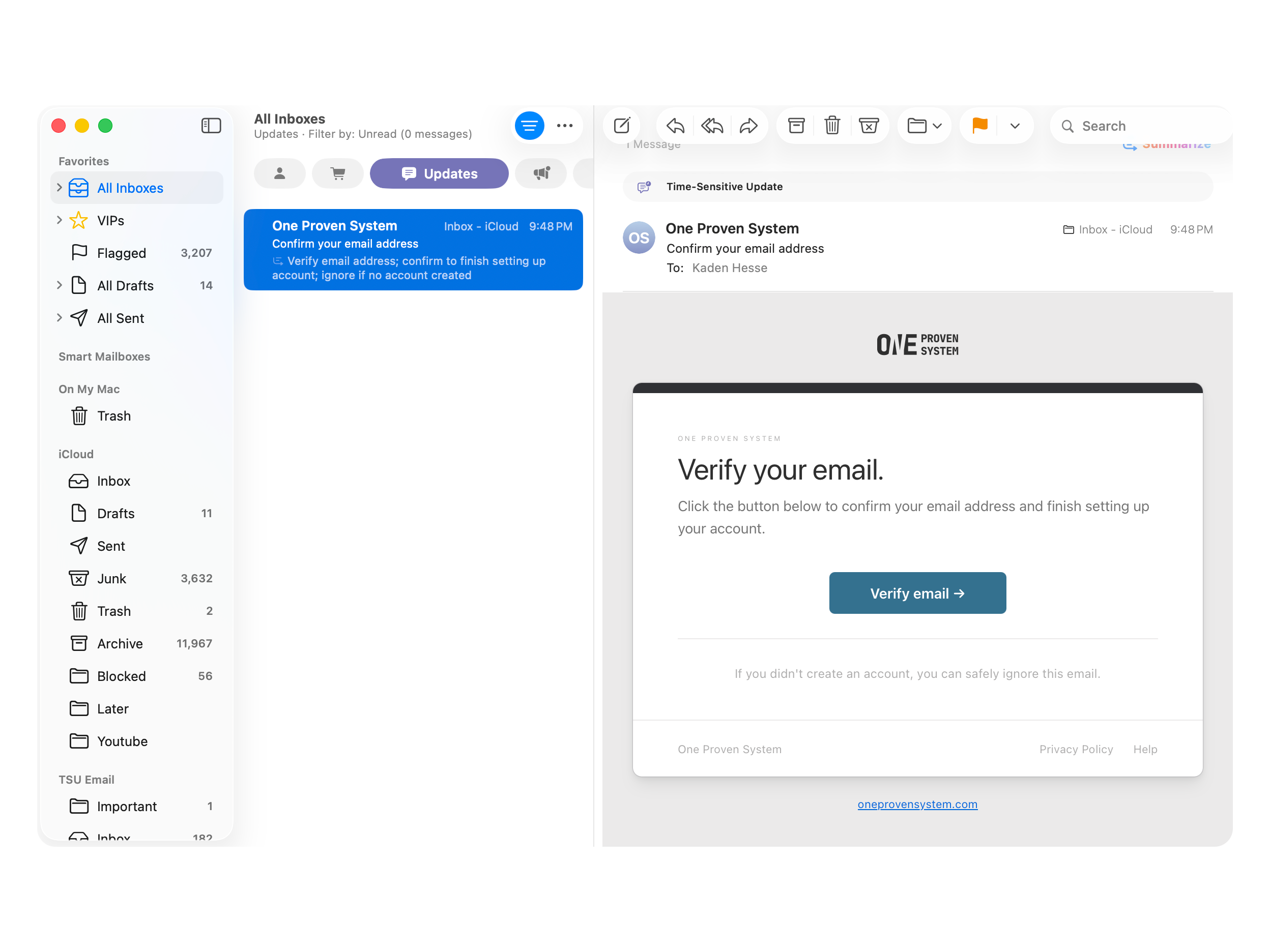
CHECK YOUR INBOX
We sent you a confirmation link. Click it, and you're good to sign in.
Check your spam folder if you don't see it within a minute.
Signed up with Google or Apple? You're already verified — skip this step and sign right in.
NOW THE INSTALL
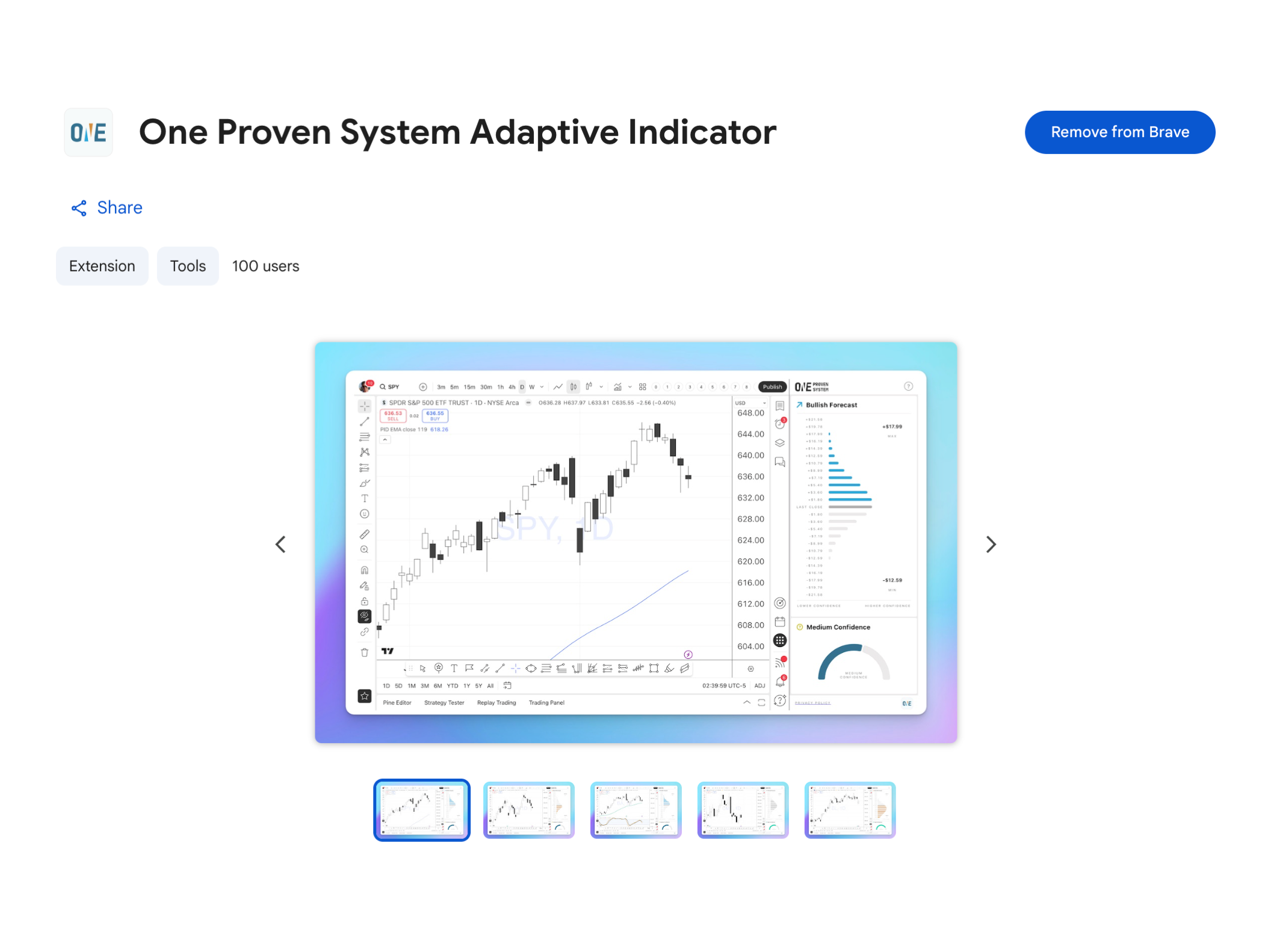
This installs a small extension that lives inside TradingView. This is how OPS adds a forecast panel right next to your chart.
Open Chrome Web StoreWorks in Chrome, Edge, Brave, Arc & all Chromium browsers.
QUICK BUT IMPORTANT
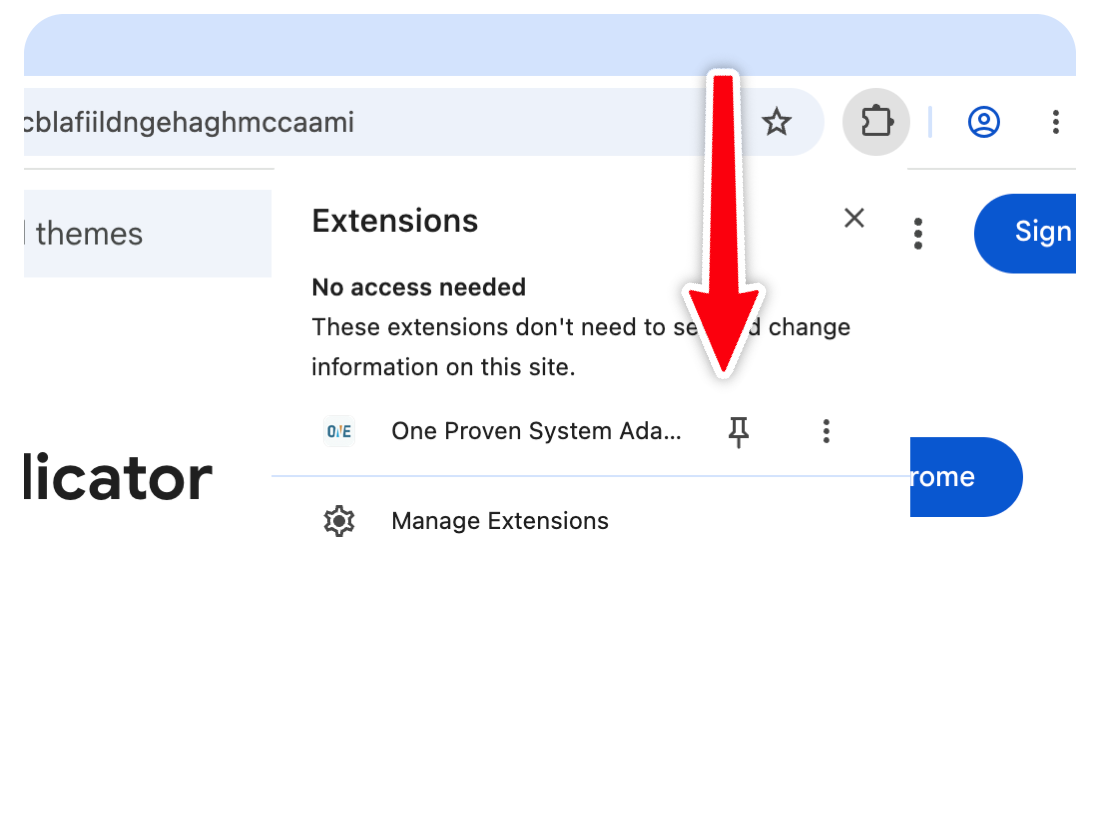
After installing, the extension hides behind a menu by default. Let's fix that.
Click the puzzle piece icon 🧩 in the top-right of your browser.
Find "One Proven System" in the list.
Click the pin icon next to it. Done — you'll see the OPS icon in your toolbar from now on.
THE FUN PART
Go to TradingView and pull up any S&P 500 stock. You may have to reload TradingView after installing OPS.
Click the OPS icon you just pinned in your toolbar.
A side panel opens. Sign in with the same account you created.
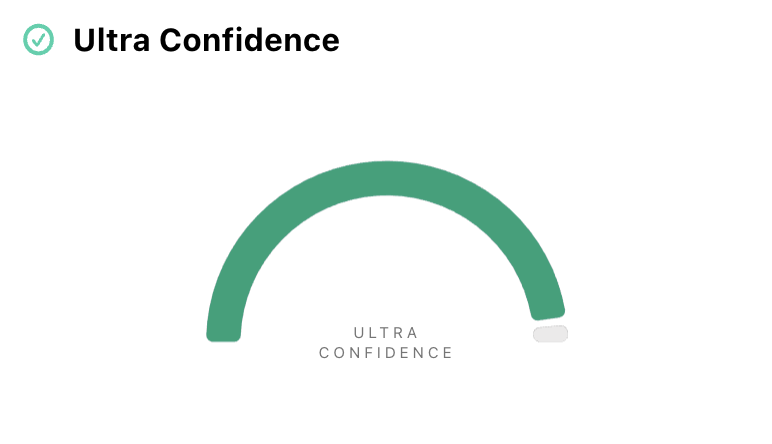
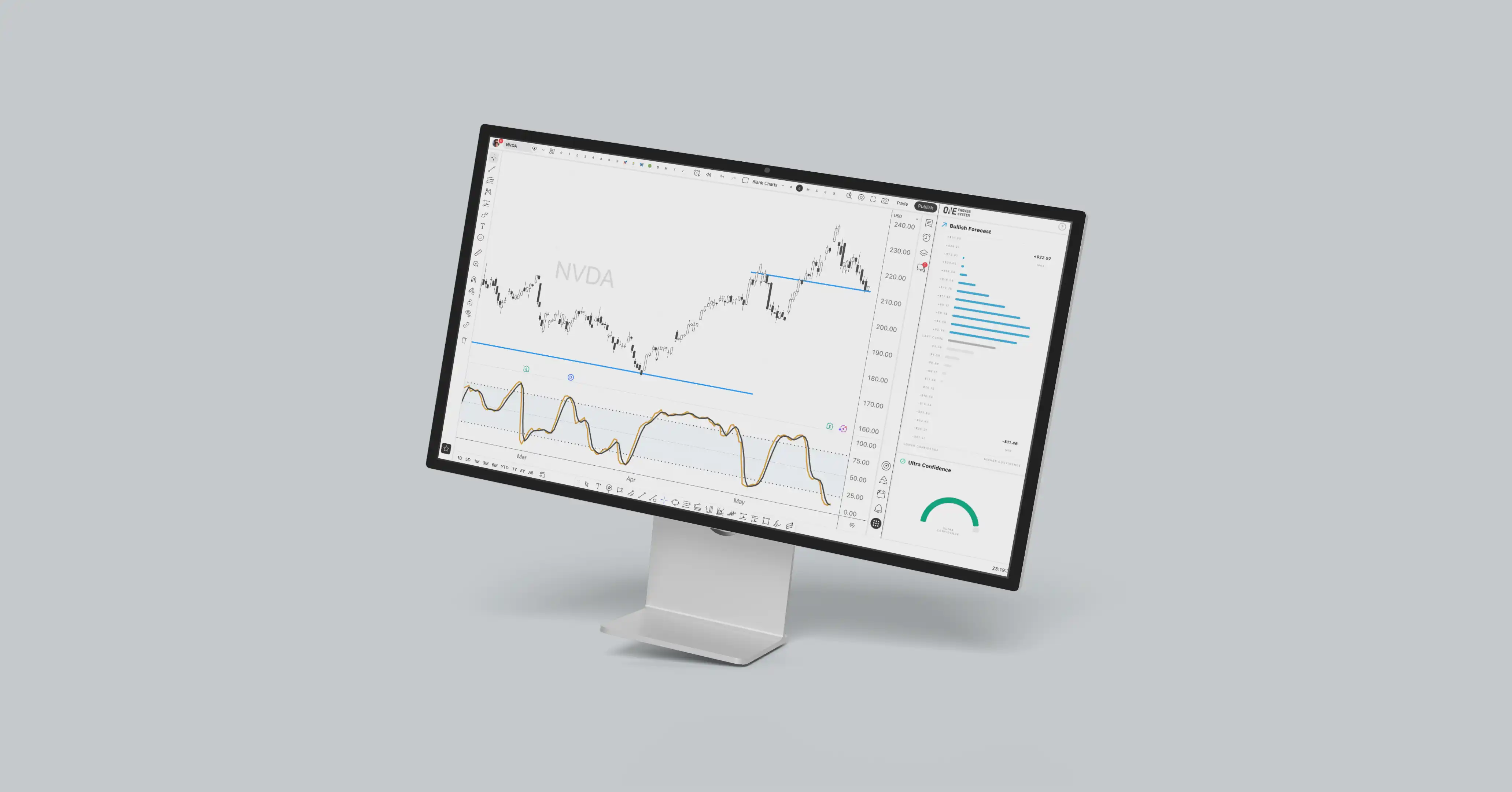
You'll see the forecast immediately. Switch tickers and OPS follows along.
Forecasts update every trading day. Just open TradingView and they're waiting for you.
Something not working? Email kaden@oneprovensystem.com, you'll hear back from a real person.
HAVEN'T SIGNED UP YET?
Get two weeks for free ➜